

Did you know you can adjust your store’s availability on Amazon during busy seasons or planned time off? The Amazon Holiday Settings widget gives sellers more control over how their listings behave when they’re not actively fulfilling orders.
Holidays matter because you need space to step back without hurting your business. Sellers use these dates to regroup, plan ahead, and protect their metrics during downtime.
But it can be hard to manage orders, timelines, and customer expectations when you’re not fully available. That’s why Amazon includes a setting that lets you adjust order handling, hide your FBM offers temporarily, update timelines, and more.
This blog explains how to use the Amazon Holiday Settings widget to manage your store, control delivery estimates, and handle seller-set and public holidays effectively. Our Amazon agency also discusses best practices, step-by-step setup, and tips to keep operations smooth and customers satisfied during busy seasons.
Table of Contents
Stay Ahead During Peak Sales
Capture delivery advantages on minor holidays and prevent overload on busy days.
What Is the Amazon Holiday Settings Widget?
With online shoppers expected to spend over $253 billion during the holiday season, it only makes sense for Amazon sellers to prepare early. Part of that preparation includes adjusting your shipping and handling schedule so buyers get accurate delivery dates.
The Amazon Holiday Settings widget helps with this by letting you manage which days count as operating days for your store. It also gives you control over national, Amazon-set, and custom holidays so your shipping promises match your real workflow.
What’s more, this tool adjusts delivery estimates automatically, helping you avoid late-shipment penalties and frustrated customers. So, for sellers who want to stay organized and keep strong account health during busy seasons or personal downtime, learning and using this feature is a must.
How to Use the Amazon Holiday Settings Widget
Using the Amazon holiday setting is easy, but many sellers get confused because they’re not sure how each option affects their shipping dates. With a simple guide that walks you through the steps, setting it up becomes much easier.
A. How to Define Seller-Set Holidays
There are Amazon-set holidays already loaded into the system, but sellers can add their own dates if they need extra non-operating days. This helps you control delivery estimates when your team isn’t available.
- Click “Shipping Settings” on Seller Central Settings.
- Select “General Shipping Settings”.
- Click “Edit” on the Holiday Settings widget.
- Choose “Add a custom holiday”.
- Enter the holiday name and the date range you want.
- Click “Save” to apply it.
B. How to Override Public Holidays in Seller Central
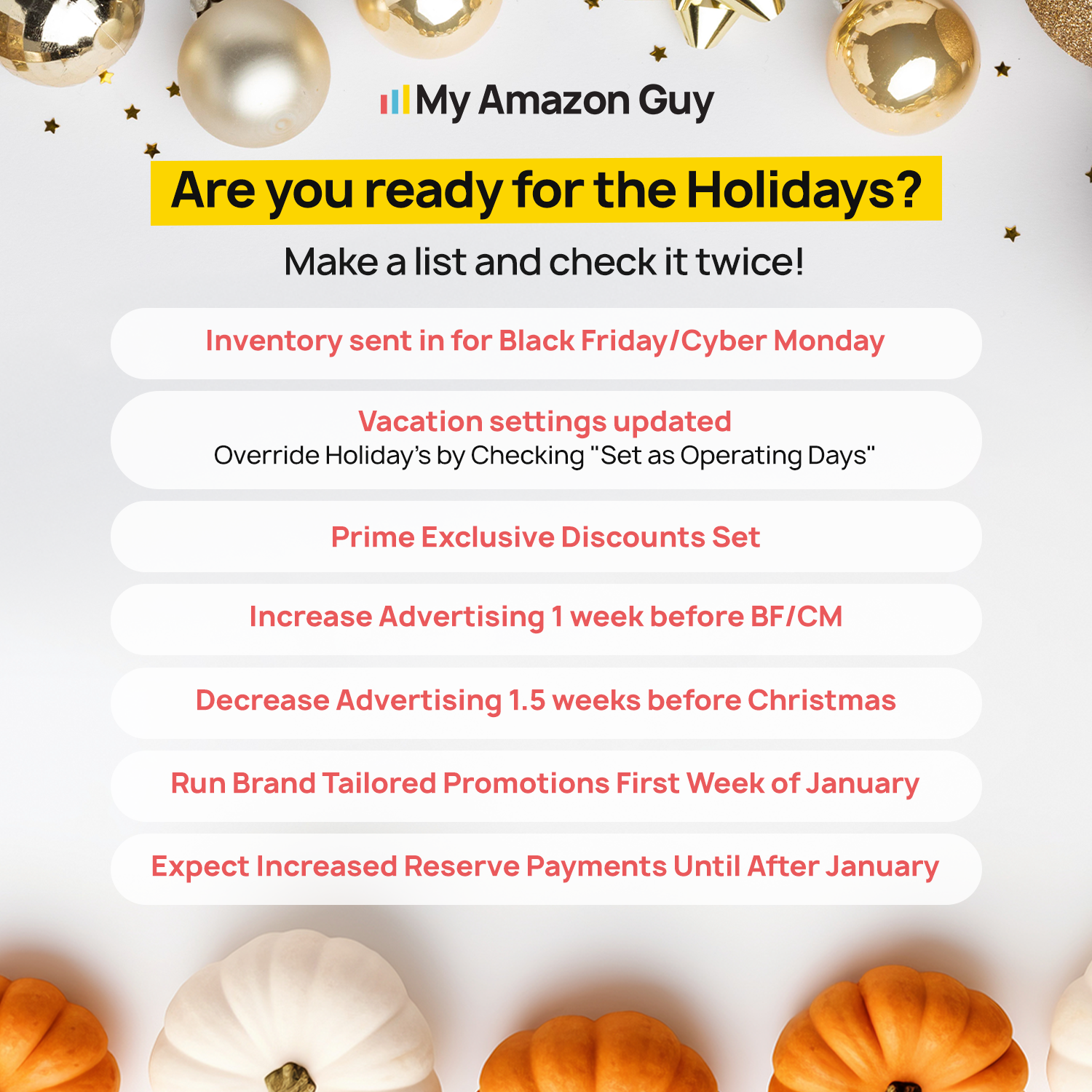
Some sellers might need to operate on certain public holidays due to high demand or special promotions. Regardless of the reason, learning to override these holidays is important to keep your shipping estimates accurate and avoid late shipment issues.
- Click “Shipping Settings” on Seller Central Settings.
- Select “General Shipping Settings”.
- Click “Edit” on the Holiday Settings widget.
- Check the boxes for the public holidays you want to count as operating days.
- Click “Save”.
- The overridden holidays will now be tagged as “Set as Operating Day”.
C. How to Revert to Public Holidays
Sellers may decide to return previously overridden holidays to regular public holidays for operational or planning reasons. Knowing how to do this is important so you can maintain accurate shipping estimates and avoid confusion with order handling.
- Click “Shipping Settings” on Seller Central Settings.
- Select “General Shipping Settings”.
- Click “Edit” on the Holiday Settings widget.
- Locate holidays marked as “Set as Operating Day”.
- Uncheck the box for each holiday you want to revert.
- Click “Save” to apply the changes.
D. How to Delete Seller-Set Holidays
There might come a time when a custom holiday is no longer needed or was set by mistake. In that case, you can delete it to keep your holiday settings accurate and avoid unnecessary shipping delays.
- Click “Shipping Settings” on Seller Central Settings.
- Select “General Shipping Settings”.
- Click “Edit” on the Holiday Settings widget to view all holidays.
- Find the custom holiday you want to remove and click “Delete”.
- Confirm the deletion when prompted.
Seen a New Seller Central Update? Let Us Know!
Amazon Seller Central constantly updates its interface. If you spot a change we missed, let us know using the form below!
Keep Your Customers Happy
Ensure accurate delivery estimates and smooth operations with the right holiday management.
Best Practices in Handling Holiday Settings on Amazon
When not handled properly, the Amazon Holiday Settings can cause shipping delays, frustrated customers, and account issues, making it less effective. This is why following best practices on how to set and manage holidays is a must for every seller.
1. Plan Holidays Ahead of Time
Use the widget to schedule holidays before the busy season starts. This ensures that Amazon calculates delivery dates correctly and avoids last-minute confusion.
Planning ahead gives you full control over both seller-set and Amazon-set holidays. Early setup also prevents stress when multiple holidays overlap or orders spike.
2. Only Override Holidays When Necessary
Avoid marking all holidays as operating days in the widget. Be selective and only override days where you can realistically fulfill orders.
This helps prevent inaccurate delivery estimates and protects your metrics. Minor holidays with carrier support are better targets than major national holidays.
3. Sync Widget Settings With Order Queue
Remember that changes in the widget affect both new and pending orders. Before activating a holiday as an operating day, check your unshipped orders to ensure you can meet the updated ship dates.
Failing to sync the widget with your order queue can cause late shipments. Always review orders first so the widget aligns with your operational reality.
4. Adjust Handling Capacity for Busy Days
When marking a holiday as operating, use the widget in conjunction with Amazon’s order handling capacity. Limit the number of orders processed to prevent overwhelming your team.
This prevents fulfillment delays and maintains accurate delivery promises. The widget works best when paired with handling capacity planning.
5. Regularly Audit Your Holiday Settings
Check the widget periodically to ensure all holidays, overrides, and seller-set dates reflect your current schedule. Operations or staffing changes can require quick adjustments.
Regular audits prevent errors in estimated shipping dates. Keeping the widget updated ensures it always mirrors your actual operational capacity.
Frequently Asked Questions
How do I turn on Christmas mode on Amazon?
Go to Seller Central > Settings > Shipping Settings > Holidays widget. Add a custom holiday for Christmas or override the default holiday, then save your changes.
Can I still receive orders on a seller-set holiday?
Yes, the widget allows your listings to stay active even on seller-set holidays. Amazon will adjust the shipping and delivery estimates according to the holiday schedule.
What’s the difference between Amazon-set holidays and seller-set holidays?
Amazon-set holidays are preloaded non-operating days that can be overridden if you plan to work. Seller-set holidays are custom dates you define for your own schedule.
Will changes in the Holiday Settings widget affect orders already placed?
No, the widget only affects orders placed after saving the change. Existing orders will follow the shipping promises calculated when they were placed.
How can I revert a holiday I marked as operating back to a non-operating day?
Open the Holidays widget in Seller Central, uncheck the operating day box for that holiday, and save. Future orders will now reflect the original non-operating schedule.
Stay in Control With Amazon Holiday Settings
There are ways sellers can keep their operations smooth and maintain fast delivery promises during the holidays, and one key method is by managing their Holiday Settings widget effectively. By knowing how to define, override, and adjust holidays, they can control shipping estimates and avoid customer frustration.
Using the widget strategically also helps sellers capture delivery advantages on minor holidays and prevent overload on busy days. Regularly reviewing and updating your holiday settings ensures your store always reflects your actual capacity and operations.
Need help preparing your Amazon store and Holiday Settings for the holidays? Reach out to our full-service Amazon agency and let our experts handle your holiday setup and shipping strategy.
Prepare Your Store for the Holidays
Make sure your Amazon listings and Holiday Settings are ready for the busy season.